
Microsoft Office 365 is the new standard in the EUC space right now. To honor this, we need a fast and reliable way to install it with our favorite deployment tools like MDT or PDQ, for example when you rebuild your master images.
There are a few different ways to deploy Office 365, but they are all similar:
- You need the Office 365 Click-to-run setup.exe (Office Deployment Tool (ODT))
- You need a XML configuration file
- You decide to deploy from a pre-build offline cache or the files are downloaded from Microsoft each and every time
And then you go: setup.exe /configure configuration.xml
Pretty straight forward you think, but non the less I had problems with this approach. And this is due to the fact, that the Office Deployment Tool itself gets updated pretty often. And this breaks your unattended deployments sooner or later, as the setup.exe stops working.
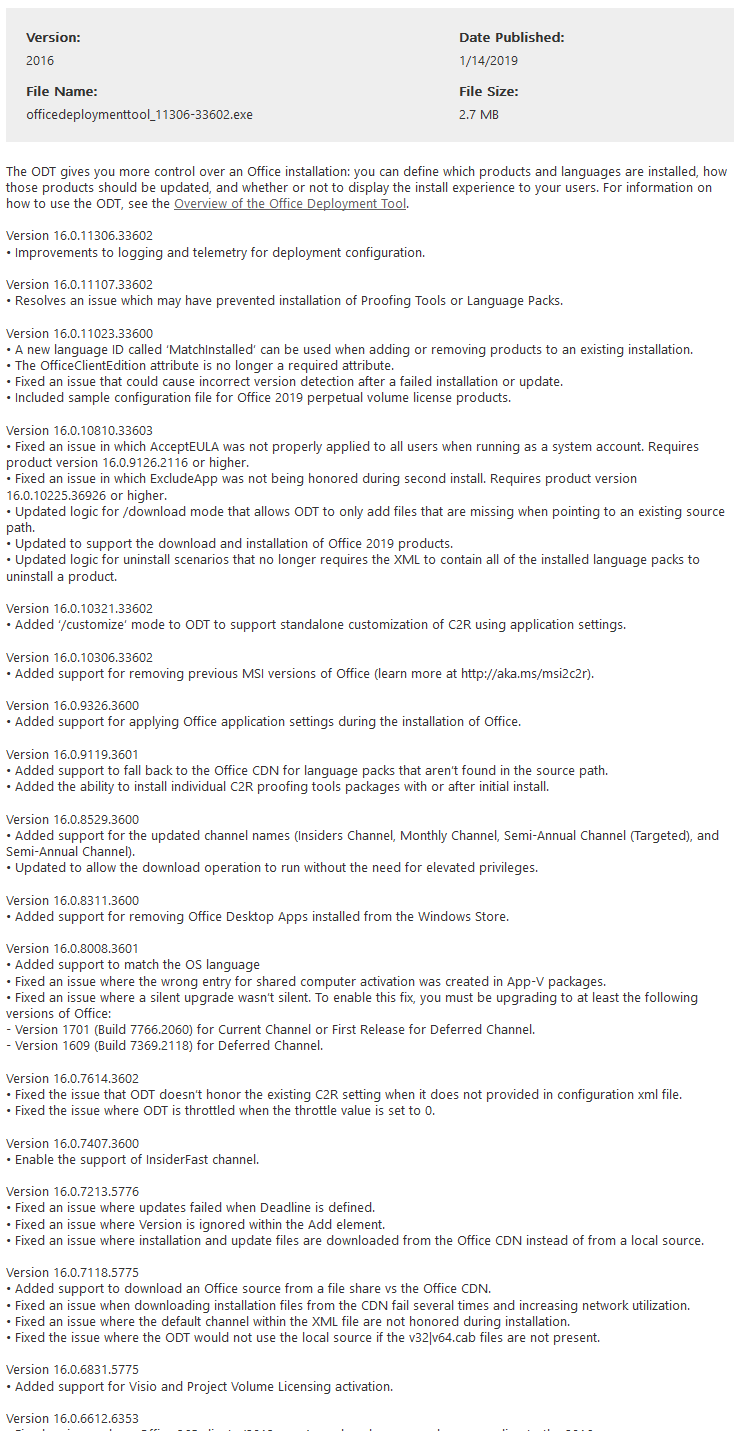
Dear @Office365 team, I'm trying to deploy the on-premises client to our Windows10 an Server2016 clients in a more unattended & evergreen way. I've the problem that the Office Deployment Tool version changes quite regular. Is there an evergreen URL to the latest setup.exe?
— Marco Hofmann (CTA) (@xenadmin) December 29, 2018
To solve this issue, I developed a PowerShell script together with Trond Eric Haavarstein, that checks the version of the Office Deployment Tool each time it’s executed. If a new version is available, it gets download and will be used immediately. If the file is already up-to-date, the download will be skipped. You will need to supply your own configuration XML file, and then you are ready to go.
Important: With the release of Office 2019, the MSI based setup was replaced by the Click2run setup trough the Office Deployment Tool (ODT), so this Blog post and script are equally valid for Office 2019, except you need a slightly different XML file. Keep this in mind.
If you don’t have a configuration XML file, there is an example file in my GitHub Repository, or check out the Office Customization Tool.
<#
.SYNOPSIS
    Download and install latest Office 365 Deployment Tool (ODT)
.DESCRIPTION
    Download and install latest Office 365 Deployment Tool (ODT)
.EXAMPLE
    Set-Location to MDT script root aka %settings%
    PS C:\> . .\install.ps1
    Downloads latest officedeploymenttool.exe
    Creates a sub-directory for each new version
    Creates the offline cache for the setup files
    Installs Office 365 to target
.NOTES
    Author: Marco Hofmann & Trond Eric Haavarstein
    Twitter: @xenadmin & @xenappblog
    URL: https://www.meinekleinefarm.net & https://xenappblog.com/
.LINK
    Download and install latest Office 365 via Office Deployment Tool (ODT)
.LINK
    https://www.microsoft.com/en-us/download/details.aspx?id=49117
.LINK
    https://www.microsoft.com/en-us/download/confirmation.aspx?id=49117
#>

function Get-ODTUri {
    <#
        .SYNOPSIS
            Get Download URL of latest Office 365 Deployment Tool (ODT).
        .NOTES
            Author: Bronson Magnan
            Twitter: @cit_bronson
            Modified by: Marco Hofmann
            Twitter: @xenadmin
        .LINK
            https://www.meinekleinefarm.net/
    #>
    [CmdletBinding()]
    [OutputType([string])]
    param ()

    $url = "https://www.microsoft.com/en-us/download/confirmation.aspx?id=49117"
    try {
        $response = Invoke-WebRequest -UseBasicParsing -Uri $url -ErrorAction SilentlyContinue
    }
    catch {
        Throw "Failed to connect to ODT: $url with error $_."
        Break
    }
    finally {
        $ODTUri = $response.links | Where-Object {$_.outerHTML -like "*click here to download manually*"}
        Write-Output $ODTUri.href
    }
}

<#
PowerShell Wrapper for MDT, Standalone and Chocolatey Installation - (C)2015 xenappblog.com
Example 1: Start-Process "XenDesktopServerSetup.exe" -ArgumentList $unattendedArgs -Wait -Passthru
Example 2 Powershell: Start-Process powershell.exe -ExecutionPolicy bypass -file $Destination
Example 3 EXE (Always use ' '):
$UnattendedArgs='/qn'
(Start-Process "$PackageName.$InstallerType" $UnattendedArgs -Wait -Passthru).ExitCode
Example 4 MSI (Always use " "):
$UnattendedArgs = "/i $PackageName.$InstallerType ALLUSERS=1 /qn /liewa $LogApp"
(Start-Process msiexec.exe -ArgumentList $UnattendedArgs -Wait -Passthru).ExitCode
#>

Write-Verbose "Setting Arguments" -Verbose
$StartDTM = (Get-Date)

$Vendor = "Microsoft"
$Product = "Office 365 x32"
$PackageName = "setup"
$InstallerType = "exe"
$LogPS = "${env:SystemRoot}" + "\Temp\$Vendor $Product $Version PS Wrapper.log"
$Unattendedxml = 'RDSH.xml'
$UnattendedArgs = "/configure $Unattendedxml"
$UnattendedArgs2 = "/download $Unattendedxml"
$URL = $(Get-ODTUri)
$ProgressPreference = 'SilentlyContinue'

Start-Transcript $LogPS

Write-Verbose "Downloading latest version of Office 365 Deployment Tool (ODT)." -Verbose
Invoke-WebRequest -UseBasicParsing -Uri $url -OutFile .\officedeploymenttool.exe
Write-Verbose "Read version number from downloaded file" -Verbose
$Version = (Get-Command .\officedeploymenttool.exe).FileVersionInfo.FileVersion

Write-Verbose "If downloaded ODT file is newer, create new sub-directory." -Verbose
if( -Not (Test-Path -Path $Version ) ) {
    New-Item -ItemType directory -Path $Version
    Copy-item ".\$Unattendedxml" -Destination $Version -Force
    .\officedeploymenttool.exe /quiet /extract:.\$Version
    start-sleep -s 5
    Write-Verbose "New folder created $Version" -Verbose
}
else {
    Write-Verbose "Version identical. Skipping folder creation." -Verbose
}

Set-Location $Version

Write-Verbose "Downloading $Vendor $Product via ODT $Version" -Verbose
if (!(Test-Path -Path .\Office\Data\v32.cab)) {
    (Start-Process "setup.exe" -ArgumentList $unattendedArgs2 -Wait -Passthru).ExitCode
}
else {
    Write-Verbose "File exists. Skipping Download." -Verbose
}

Write-Verbose "Starting Installation of $Vendor $Product via ODT $Version" -Verbose
(Start-Process "$PackageName.$InstallerType" $UnattendedArgs -Wait -Passthru).ExitCode

Write-Verbose "Customization" -Verbose

Write-Verbose "Stop logging" -Verbose
$EndDTM = (Get-Date)
Write-Verbose "Elapsed Time: $(($EndDTM-$StartDTM).TotalSeconds) Seconds" -Verbose
Write-Verbose "Elapsed Time: $(($EndDTM-$StartDTM).TotalMinutes) Minutes" -Verbose
Stop-Transcript
The latest version of this script can always be found over at my GitHub repository, check it out:
https://github.com/xenadmin/applications

Getting the following error on some of my VM’s, any thoughts?
“VERBOSE: Setting Arguments
Failed to connect to ODT: https://www.microsoft.com/en-us/download/confirmation.aspx?id=49117 with error The
underlying connection was closed: An unexpected error occurred on a receive..”
I should add i can put the url into a browser on the same VM and it downloads the ODT without issue.
Recently, Microsoft updated the page and “https://www.microsoft.com/en-us/download/confirmation.aspx?id=49117” no longer works. We must use
“https://www.microsoft.com/en-us/download/details.aspx?id=49117” and different search criteria.
here is my contribution
function Get-ODTUri {
[CmdletBinding()]
[OutputType([string])]
param ()
$url = “https://www.microsoft.com/en-us/download/details.aspx?id=49117”
try {
$response = Invoke-WebRequest -Uri $url -ErrorAction SilentlyContinue
}
catch {
Throw “Failed to connect to ODT: $url with error $_.”
Break
}
finally {
$ODTUri = $response.Links | Where-Object { $_.href -match “https://download\.microsoft\.com/download/.*/officedeploymenttool_.*\.exe” }
Write-Host $ODTUri.href
}
}
This is not working for me
thank you your app is very fantastic keep up it
Failed to connect to ODT: https://www.microsoft.com/en-us/download/confirmation.aspx?id=49117 with error
Error 404 – Not Found
I used your code for some time and last week I noticed it did not work anymore. Microsoft changed the URL, and now uses version number.
Looking for the page I get “We’re sorry, this download is no longer available.”
From here: “https://www.microsoft.com/en-us/download/details.aspx?id=49117”
You go to: “https://download.microsoft.com/download/2/7/A/27AF1BE6-DD20-4CB4-B154-EBAB8A7D4A7E/officedeploymenttool_18227-20162.exe”
Now figure out how to get the file and changing version number.
Sorry did not read the previous post.